
Deactivating & Transfering a License
Upgrading Your Workspace? Let Us Smooth the Transition!
Moving to a new PC or workstation can feel like a daunting task, but it doesn't have to be.
We're here to make your transition seamless and stress-free.
Deactivating 1042-S Express
For Users who need to deactivate their program, please refer to the instructions below:
*Please note, all file(s) saved in the 'T20XX' folder will need to be moved before deactivation.
If a User deactivates the program before moving needed file(s), the file(s) may be permanently deleted.
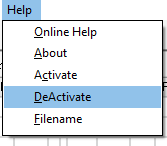
| To deactivate the 1042-S Express program, click the 'Help' menu on the top right of the program's page.
Select the 'Deactivate' option from the drop-down menu. |
 |
| A pop-up message box will prompt the user to check the file(s) saved on the PC.
Please make sure to save any file(s) needed for future use in a folder outside of the T20XX folder (located in the Documents folder) before deactivating. If file(s) are not moved before deactivating the 1042-S Express program, they may be deleted. |
 |
If the User is certain all file(s) have been properly saved in a separate folder, click 'No' on the message box.
The User will then receive a new pop-up box with the message 'Program has be Deactivated'. This will indicate the program has been successfully deactivated.
If at any point the User does lose file(s) (and has e-filed using our e-Filing services), please Contact Us!
Our team will be happy to help.
Transfering a Licesnse
| Transferring 1042-S Express to a New Computer? |
|---|
However, if the most current year's program has already been purchased and an additional license is needed, please Contact Us. If the program is deactivated before moving the file(s) created from the 1099 Express program, they may be permanently deleted. |
| For instructions on how to transfer a license, please refer to the directions below: |
|
| If further assitance is needed please Contact Us. |
